Overview & Layout
Bible Word Study is a three-panel Bible study application built by Biblesoft Canada. Every feature is designed to keep you in the Word without switching between apps or losing your place. Your data is cloud-synced — sign in with Google or an email-based account and pick up exactly where you left off on any device. Share your studies, join groups, and grow together through the Community Portal.
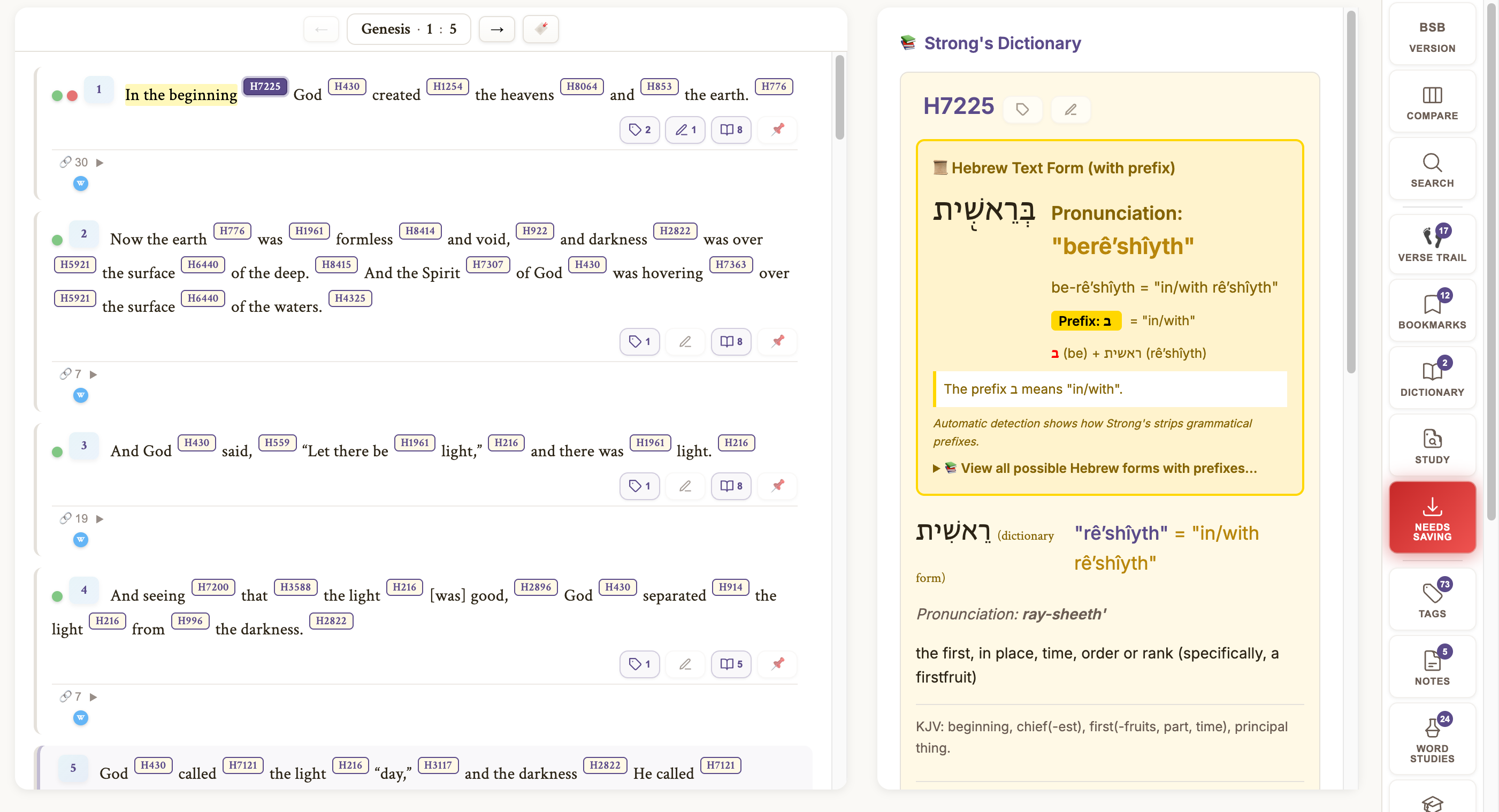
The layout consists of three main areas:
- Icon Navigation Rail — A vertical strip of buttons along the edge of the screen. This gives you one-click access to every major feature: Bible Version, Dictionary, Bookmarks, Notes, Tags, Search, Study Console, Quick Save, Word Studies, Language Practice, Lexicon Study Center, Verse Trail, Community, Help, Settings, and Account. You can flip this rail to the left or right side of the screen.
- Bible Reader — The central area where you read Scripture. Each verse is rendered as a rich, interactive card with Strong's numbers, action buttons, tag dots, and cross-references. The navigation bar at the top shows your current position as an interactive Book · Chapter : Verse reference.
- Sidebar — A context-sensitive panel on the opposite side from the nav rail. It shows Strong's definitions, bookmarks, notes, tags, search results, or word studies — depending on what you last clicked.
The Bible Reader
The Bible Reader is the heart of Bible Word Study. It includes 15 Bible translations in 6 languages, all with full Strong's concordance tagging — meaning every Hebrew and Greek word is linked to its original-language definition. The Berean Standard Bible (BSB) is the default translation.
Verse Navigation Picker
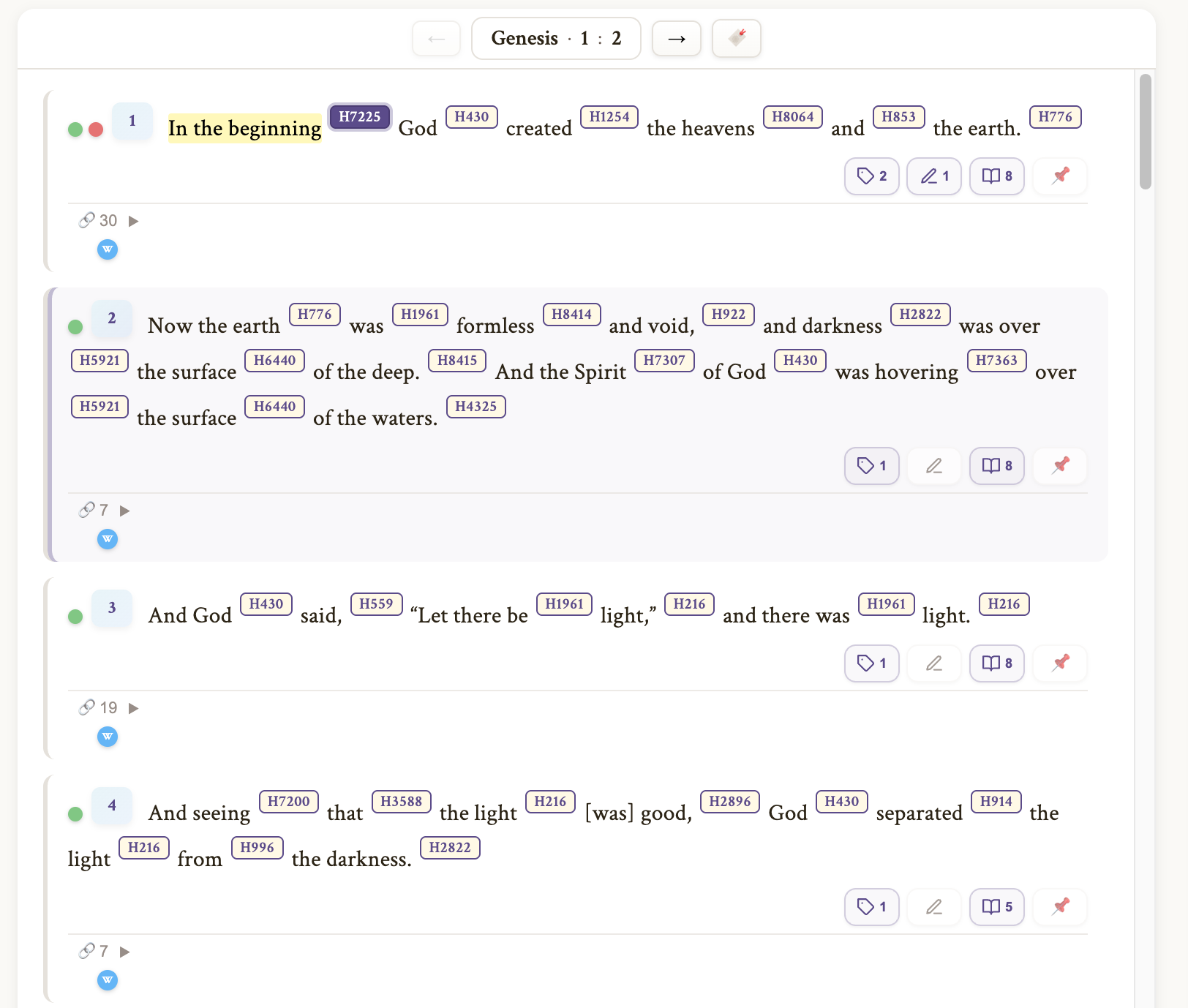
At the top of the Bible Reader, the navigation bar displays your current position as an interactive reference: Book · Chapter : Verse. Each segment is clickable and opens a visual picker panel.
- Book Segment — Click the book name (e.g., "Genesis") to open the Book Picker. All 66 books are displayed in a grid, organized under Old Testament and New Testament headers. Your current book is highlighted. Click any book to advance to the Chapter Picker.
- Chapter Segment — Click the chapter number to open the Chapter Picker. A number grid shows all chapters in the current book. Your current chapter is highlighted. Click any chapter to advance to the Verse Picker.
- Verse Segment — Click the verse number to open the Verse Picker. A number grid shows all verses in the current chapter. Your current verse is highlighted. Click any verse to scroll directly to it.
- Arrow Buttons (← →) — Navigate to the previous or next chapter. These bracket the reference display. When you reach the end of a book, they automatically advance to the next book.
- Bookmark All (🔖) — One click to bookmark every verse in the current chapter. Verses already bookmarked are skipped, so you can click it again without duplicates.
The picker panel includes a back button to step back (Verse → Chapter → Book), a breadcrumb showing your current selection, and a close button. Click anywhere outside the picker to dismiss it.
Your reading position is automatically saved to the cloud. When you return to Bible Word Study on any device, it opens to exactly where you left off.
Bible Translations
Bible Word Study includes 15 translations in 6 languages, all with full Strong's concordance tagging for instant Hebrew and Greek lookups:
English (6 translations)
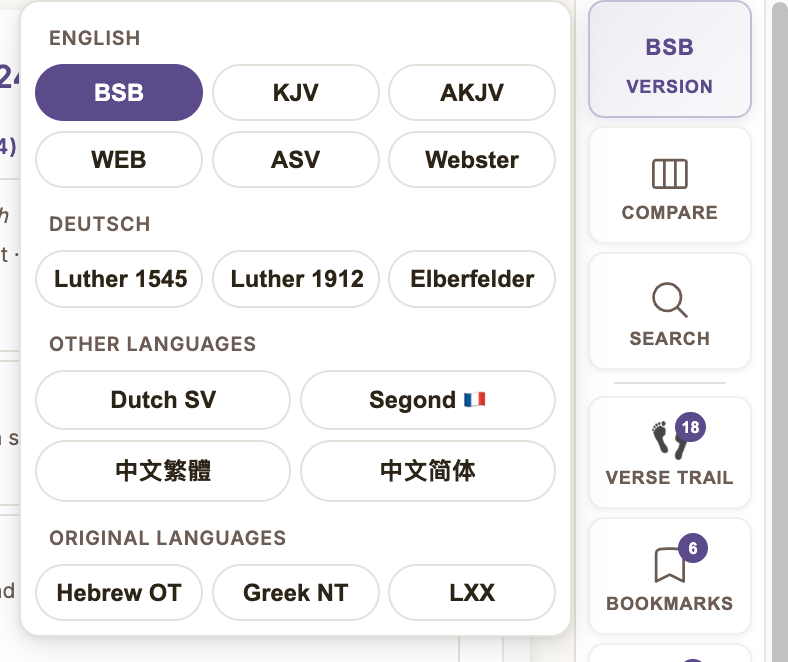
- BSB (Berean Standard Bible) — A modern, accurate translation in clear contemporary English. This is the default.
- KJV (King James Version) — The classic 1769 English translation familiar to generations of believers.
- AKJV (American King James Version) — The KJV with updated spelling and grammar for modern readability.
- WEB (World English Bible) — A modern public domain translation based on the ASV.
- ASV (American Standard Version) — The highly literal 1901 revision prized by scholars.
- Webster (Webster's Bible Translation) — Noah Webster's 1833 update of the KJV with American English.
German / Deutsch (3 translations)
- Luther 1545 — Martin Luther's original German translation of 1545.
- Luther 1912 — The 1912 revision of the Luther Bible in updated German.
- Elberfelder 1905 — A highly literal German translation valued for its accuracy.
Other Languages (4 translations)
- Dutch SV (Statenvertaling) — The classic 1637 Dutch Bible translation.
- Segond (Louis Segond) — The standard French Protestant Bible (1910).
- CUV 中文繁體 (Chinese Union Version) — Traditional Chinese, the most widely used Chinese Bible (1919).
- CUVS 中文简体 (Chinese Union Version Simplified) — Simplified Chinese edition.
Original Language Source Texts (2 texts)
- Hebrew OT — The original Hebrew Old Testament text with full Strong's tagging. Read the Scriptures in the language they were written in, with instant English lookups for every word.
- Greek NT (LXX/NA) — The original Greek New Testament text with full Strong's tagging. Includes the Septuagint (LXX) for the Old Testament — the Greek translation used by the early church and quoted throughout the New Testament.
To switch translations, click the Version button on the navigation rail. A flyout appears with translations grouped by language. Click any translation to switch — the chapter reloads instantly. Your translation preference is saved to your account.
Side-by-Side Comparison
Click the Compare button on the navigation rail to enter comparison mode. The Bible reader splits into two synchronized panes, each showing the same chapter in a different translation. Scroll one pane and the other follows.
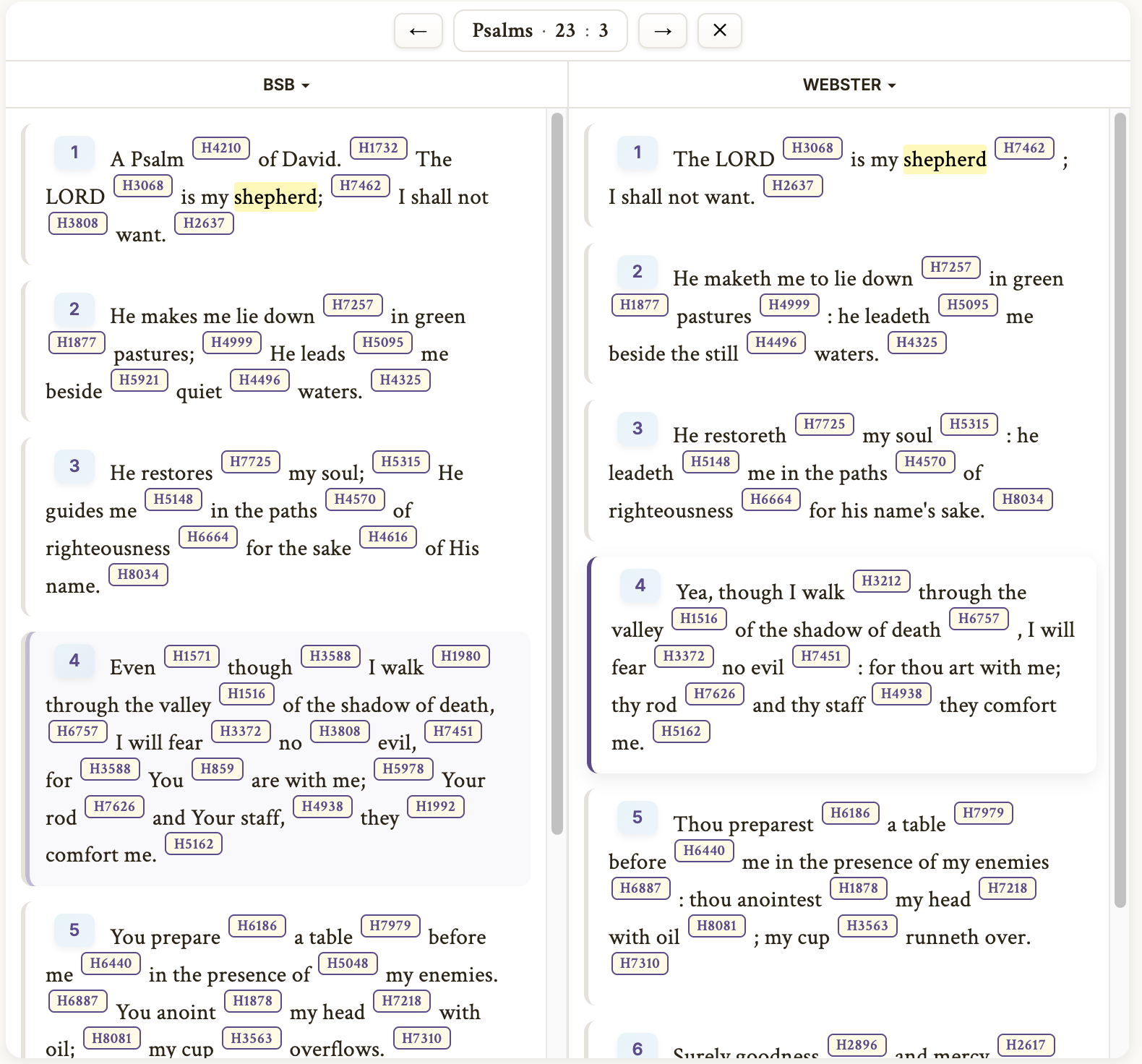
- Independent translation switching — Each pane has its own translation selector. Compare any two translations side by side.
- Synchronized scrolling — Both panes scroll together so the same verses stay aligned.
- Full Strong's support — Both panes have full Strong's concordance tagging. Click any number to see the definition.
- Chapter navigation — Use the arrows at the top to move through chapters. Both panes update together.
Click the × button in the comparison nav bar to exit comparison mode and return to the single-pane reader.
Verse Cards
Every verse in Bible Word Study is rendered as an interactive card with several components:

- Tag Dots — Small colored circles that appear before the verse number. Solid dots are Bible (permanent) tags; dashed-outline dots are Study tags. A second row of "W" dots below the verse indicates Word tags on individual Strong's numbers within the verse. (See Tags for details.)
- Verse Number — The verse number displayed in a distinct badge style.
- Verse Text — The full verse text with Strong's concordance markup. Each English word is linked to its underlying Hebrew or Greek word via subtle superscript numbers. Click any Strong's number to see its full definition in the sidebar.
- Bookmark Button (🔖) — Click to bookmark this verse. Bookmarks are saved with your current study and accessible from the nav rail. (See Bookmarks.)
- Tag Button (🏷) — Click to open the Tag Picker for this verse. Create new tags, assign existing tags, or remove tags. The button glows when the verse has tags. (See Tags.)
- Notes Button (📝) — Click to open the Notes Dialog for this verse. Write, edit, and delete Bible notes (personal and private — never shared). A count badge appears when notes exist. (See Notes.)
- Cross-Reference Toggle (🔗) — Shows the number of cross-references available. Click to expand a panel showing all related verses, grouped by book. Click any reference to open it in a floating popup without losing your place. (See Cross-References.)
- Commentary Button (📖) — Opens the commentary panel in the sidebar for this verse. A count badge shows how many commentary sources have content for this verse.
Strong's Numbers
Strong's Numbers are the foundation of deep Bible study. Every word in all 15 translations is linked to James Strong's numbering system, which maps words to their original Hebrew (Old Testament, prefixed with "H") or Greek (New Testament, prefixed with "G") words.
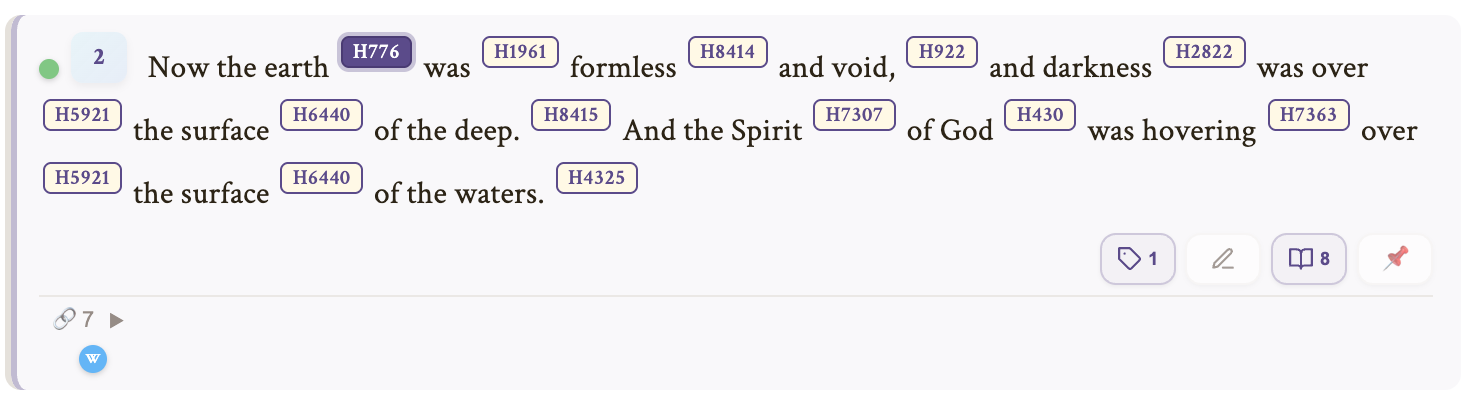
When you click a Strong's number in the verse text:
- The sidebar switches to the Strong's Dictionary view
- You see the full definition including: the original word (lemma), transliteration, pronunciation guide, Strong's definition, and related words
- For Hebrew words, you also see a letter-by-letter analysis with the pictographic meaning of each Hebrew letter, revealing deeper layers of meaning
- The word is recorded in your Dictionary history and persists across sessions
Cross-References
Cross-references connect related verses across the entire Bible. They help you see how themes, prophecies, and teachings echo throughout Scripture.
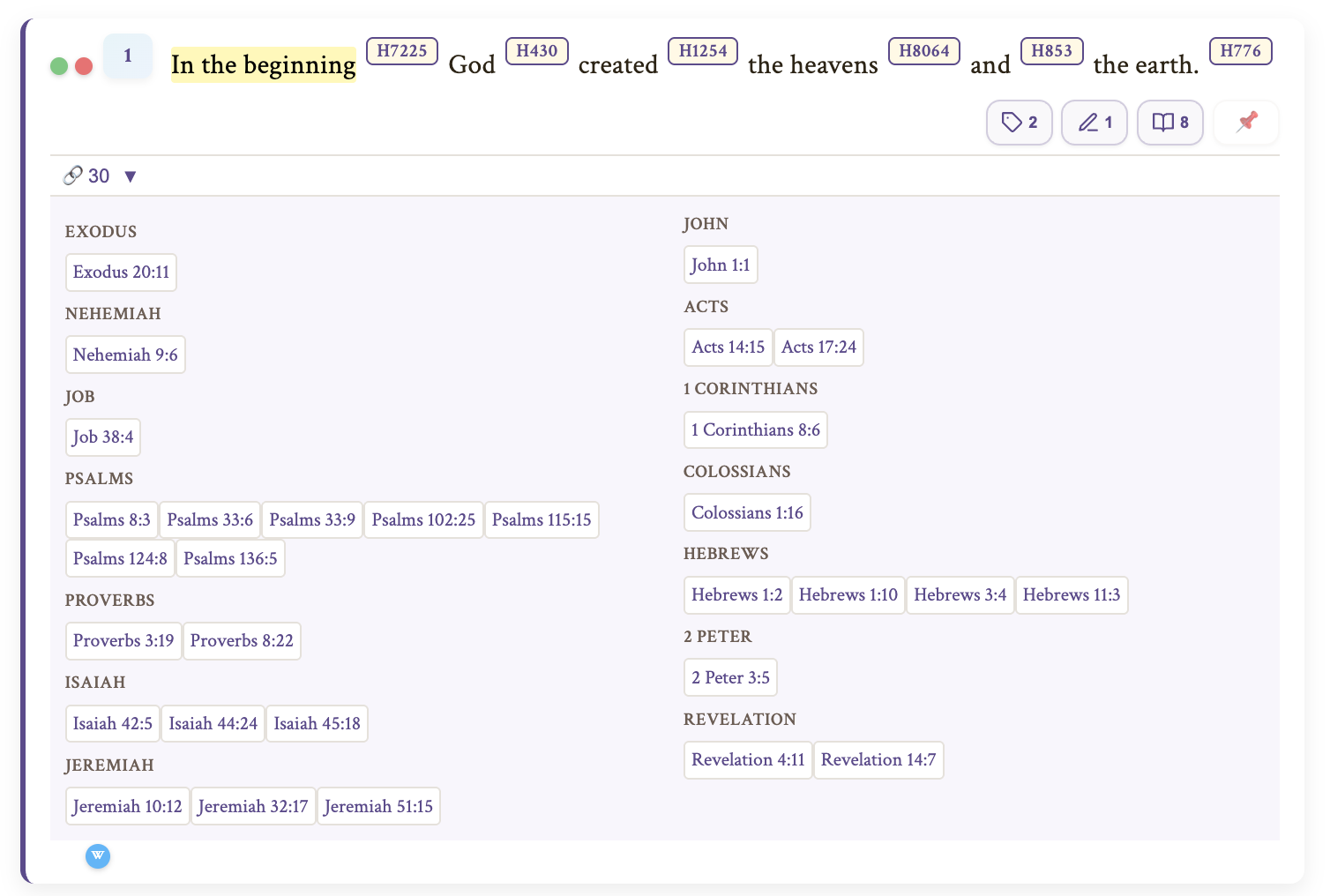
Each verse shows a cross-reference count (e.g., "🔗 12"). Click to expand the panel:
- References are grouped by book for easy scanning
- Click any reference to open it in a floating popup — you can read the verse, bookmark it, tag it, or add notes without leaving your current chapter
- The popup has a trail — follow cross-references within cross-references, and the trail remembers everywhere you've been
- Click the toggle again to collapse the panel
Verses with no known cross-references have their toggle button automatically hidden.
Bible Commentary
Bible Word Study includes 11 classic Bible commentary sources, all freely available public domain works from respected theologians spanning centuries of scholarship. Commentary is available verse-by-verse and accessible directly from each verse card.
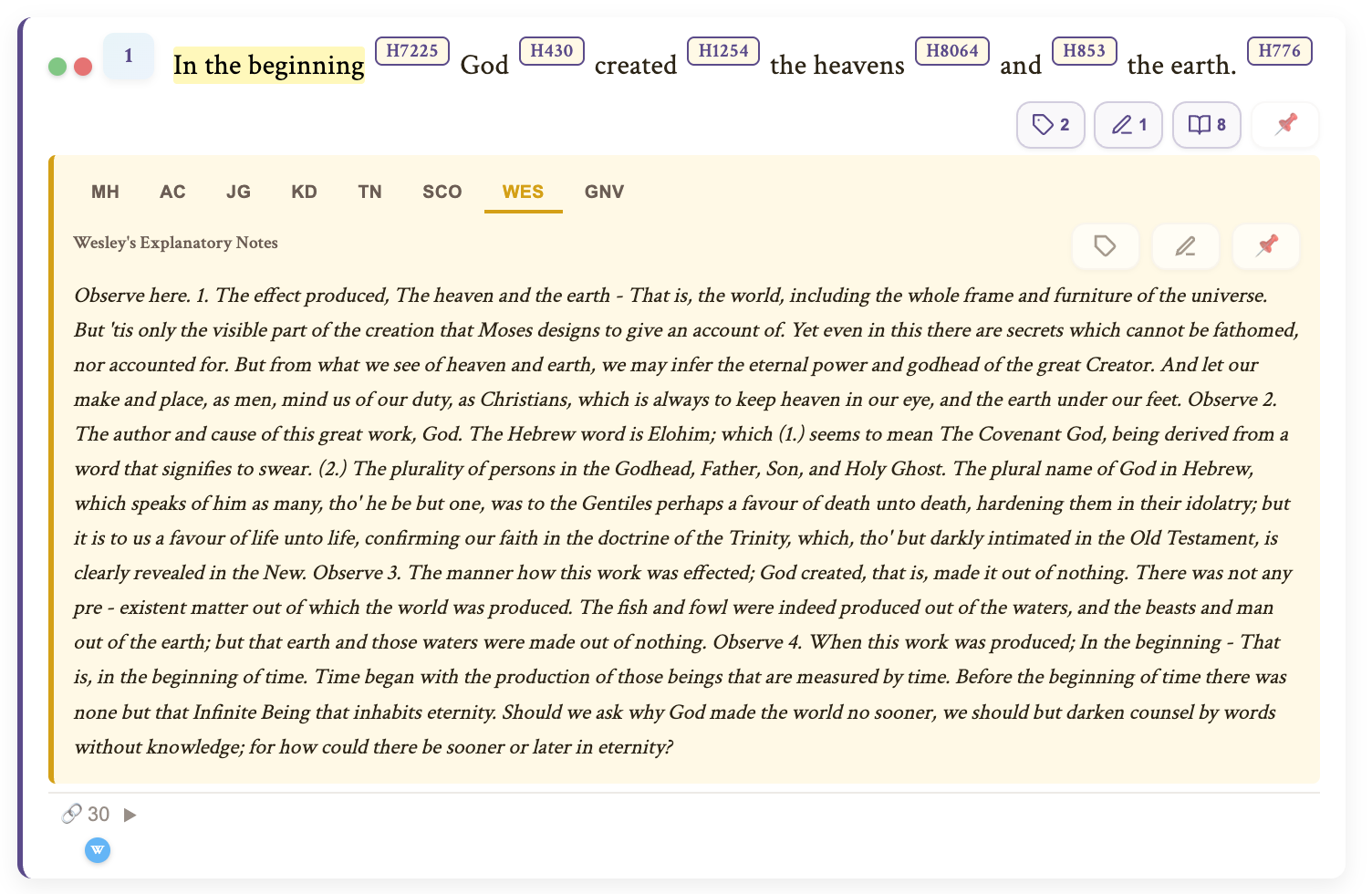
Accessing Commentary
Each verse card includes a commentary button with a count badge showing how many sources have content for that verse. Click it to open the commentary panel in the sidebar, where you can read and compare insights from multiple scholars on the same verse.
- Source badges appear automatically on verse cards when commentary is available
- Click any source tab in the commentary panel to switch between commentators
- Commentary text includes clickable verse references that open in the Bible Reference Popup, so you can follow a commentator's cross-references without losing your place
- Add commentary to your study by clicking the add button — the commentary card appears in your Study Console's verse panel
Commentary in the Study Console
When you add commentary to a study, it appears as a commentary card in the verse panel alongside your verse cards. Commentary cards can be:
- Tagged — using the same tag system as verse cards
- Noted — add personal notes on specific commentary passages
- Reordered — drag to arrange alongside your verse cards
- Injected into study text — click "→ Text" to insert the commentary into your study editor
Available Commentary Sources
The following table shows all 11 commentary sources included with Bible Word Study. Coverage indicates which parts of the Bible each source covers.
| Source | Abbr | Coverage | Description |
|---|---|---|---|
| Matthew Henry | MH | Full Bible | Devotional and practical commentary (1706). One of the most beloved commentaries in Christian history. |
| Adam Clarke | AC | Full Bible | Detailed scholarly commentary with attention to original languages (1810–1826). |
| John Gill | JG | Full Bible | Exhaustive verse-by-verse exposition with extensive cross-referencing (1746–1766). The most detailed source in our collection. |
| Jamieson, Fausset & Brown | JFB | Full Bible | Critical and explanatory commentary by three Scottish ministers (1871). Balances scholarship with accessibility. |
| Keil & Delitzsch | KD | Old Testament | The gold standard for OT Hebrew scholarship (1857–1878). Deep analysis of Hebrew grammar and ancient Near Eastern context. |
| Tyndale Study Notes | TN | Full Bible | Modern study notes designed for clarity and practical application (CC BY-SA 4.0). |
| Scofield Reference Notes | SCO | Full Bible | Influential dispensationalist reference notes (1917 edition). Widely used for prophetic and typological study. |
| Wesley's Explanatory Notes | WES | Full Bible | John Wesley's concise and practical commentary (1755). Foundational to the Methodist tradition. |
| Geneva Study Bible | GNV | Full Bible | Study notes from the 1599 Geneva Bible, favoured by the Puritans and Reformers. Historically significant as the Bible of Shakespeare's era. |
| Barnes' Notes | BRN | New Testament | Albert Barnes' accessible and widely-read NT commentary (1832–1851). Known for clear, readable explanations. |
| People's New Testament | PNT | New Testament | B.W. Johnson's commentary written for everyday readers (1891). Practical and straightforward. |
All commentary sources are public domain (except Tyndale, which is CC BY-SA 4.0). Credits and licensing details are shown in Settings.
Text Highlighting
Highlight words and phrases directly in your Bible text, just like marking up a physical Bible with colored highlighters. Highlights are permanent — they persist across sessions and are tied to your account, not to any particular study.
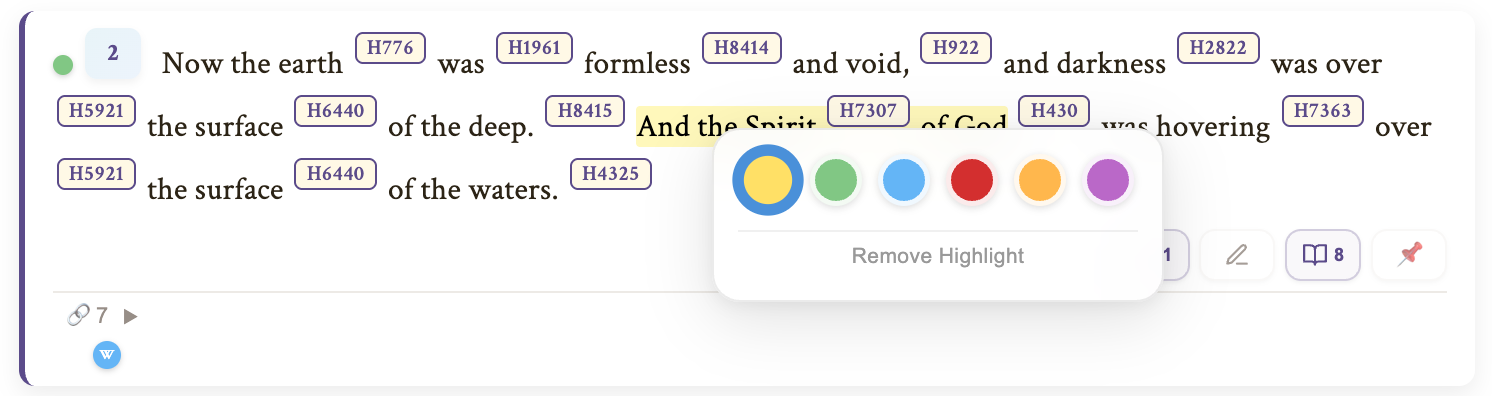
How to Highlight
- Select text — Click and drag to select a word or phrase within any verse
- Right-click — A highlight menu appears with six color options
- Pick a color — Click one of the color circles (yellow, green, blue, pink, orange, or purple) and the text is instantly highlighted
Changing or Removing Highlights
- Change color: Right-click on any highlighted text to reopen the color picker. The current color is indicated. Click a different color to switch.
- Remove: Right-click on highlighted text and click Remove Highlight at the bottom of the menu.
Where Highlights Appear
Your highlights are visible everywhere a verse is rendered:
- The main Bible reader
- Bible Reference Popup (cross-reference trail)
- Study Console verse cards
- Bookmark listings and search results
Good to Know
- Highlights are independent of Strong's numbers — toggling Strong's numbers on or off does not affect your highlights
- You can have multiple highlights per verse in different colors on different phrases
- Highlights are stored against the exact text of the verse. If you switch Bible translations, highlights made in one translation will not appear in another, since the wording differs. They reappear when you switch back.
- Each highlight is saved immediately to your account — no need to manually save
My Dictionary
The Dictionary sidebar shows every Strong's word you've explored. Your dictionary history is saved per study — each study remembers which words you looked up during that research session. When you load a study, its dictionary history is restored. When you start a new study, the dictionary is cleared.
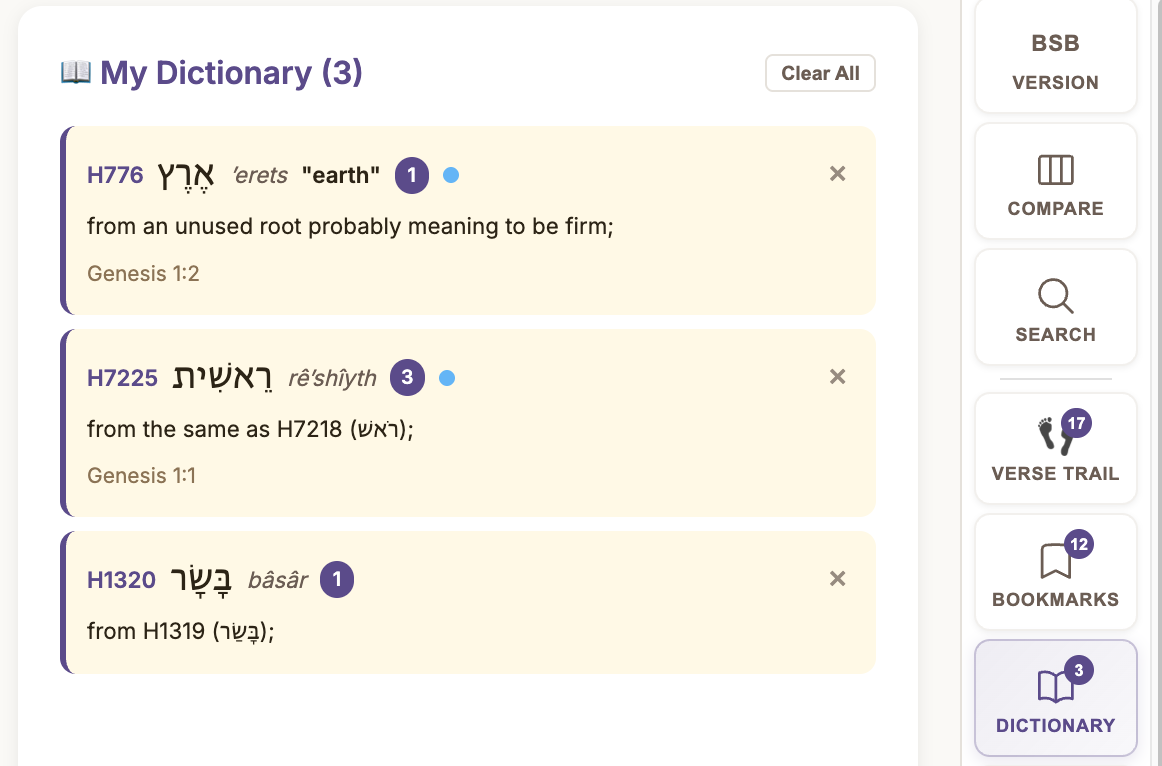
- Each entry shows the Strong's number, original word, transliteration, and any tag dots
- Click any entry to reload its full definition in the sidebar
- Words that you interact with — by tagging them, adding study notes, or sending them to a study — are automatically tracked as studied words and appear in the Lexicon Study Center's My Words tab
- Use "Clear All" to clear the visible history list
Strong's Dictionary (Sidebar Detail)
When you click any Strong's number in the Bible text, the sidebar switches to show the full dictionary entry:
- Lemma — The original Hebrew or Greek word in its root form
- Transliteration — How the word sounds in English letters
- Strong's Definition — The classic Strong's concordance meaning
- Letter Analysis (Hebrew only) — Each Hebrew letter with its name, pictographic symbol, and symbolic meaning
- Word Study Button — Opens the Lexicon Study Center for extended research
Bookmarks
Bookmarks let you save verses for quick reference. Bookmarks are saved per study — each study has its own set of bookmarks. When you load a study, its bookmarks are restored. When you start a new study, bookmarks are cleared.
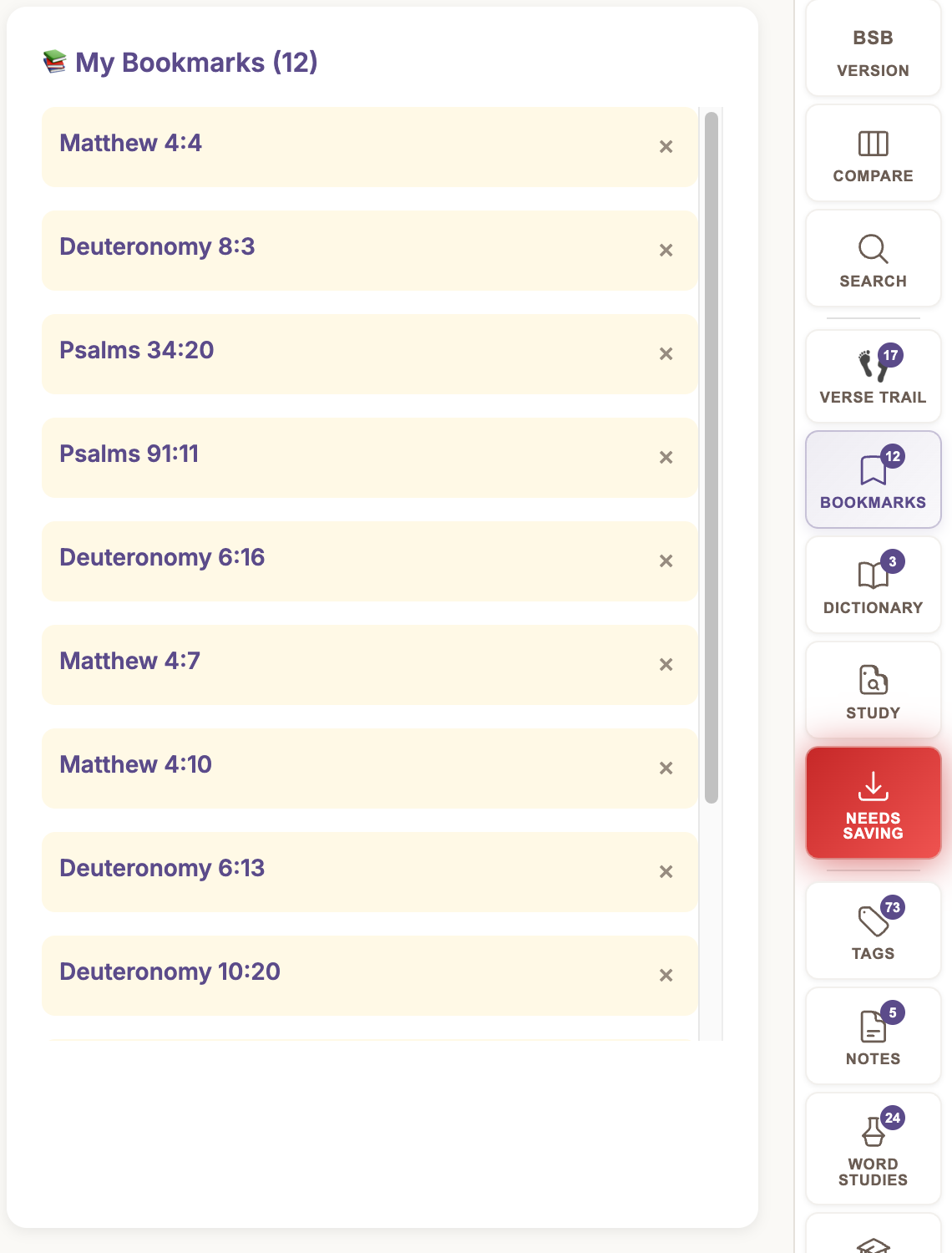
- Click the 🔖 button on any verse card to bookmark it
- Open the Bookmarks panel from the nav rail to see all bookmarks
- Click any bookmark to navigate directly to that verse
- Click the × button to remove a bookmark
- Use Bookmark All in the nav bar to bookmark every verse in the current chapter
- Bookmarking with study mode off: Since bookmarks belong to a study, bookmarking a verse when study mode is off will prompt you to name and start a new study. Study mode turns on, the study is created, and the bookmark is added. Cancel the prompt if you'd rather not start a study. (See Study Mode.)
Notes — Two Separate Systems
Bible Word Study has two completely separate note systems. They serve different purposes and live in different places.
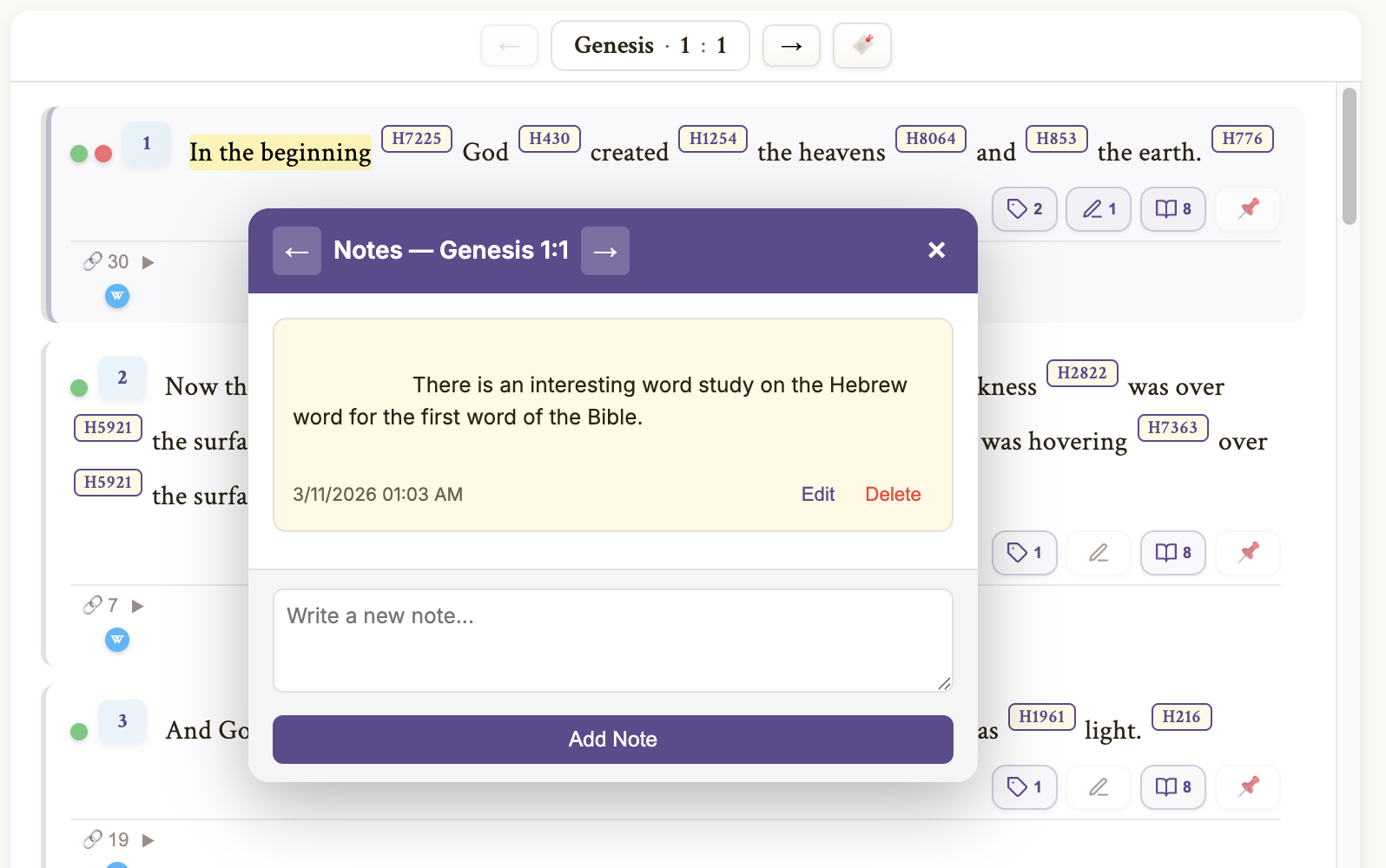
Bible Notes ("My Notes") — Personal & Private
Bible notes are your personal, private notes on individual verses. They are permanently attached to the verse itself — not to any study. They persist forever across all your studies and devices.
- Click the 📝 button on any verse card in the Bible Reader to open the Notes Dialog
- Write your thoughts, insights, or observations
- A count badge on the verse shows how many notes exist
- The Notes sidebar panel lists all your Bible notes across the entire Bible — click any to navigate to that verse
- Bible notes are never shared. They do not appear when you post a study to the Community Portal.
Study Notes — Per-Verse in the Study Console
Study notes are written inside the Study Console, attached to individual verse cards within a study. They are part of the study itself and are shared when you post a study to the Community Portal.
- Study notes live inside the Study Console, not on Bible verse cards
- They are saved and loaded with the study
- When you share a study, study notes are included alongside the verses
Trilingual Search
Bible Word Study's search works across three languages simultaneously: English, Hebrew, and Greek. You can search for English words, Strong's numbers (e.g., "H7225" for "beginning"), or transliterated original-language words.
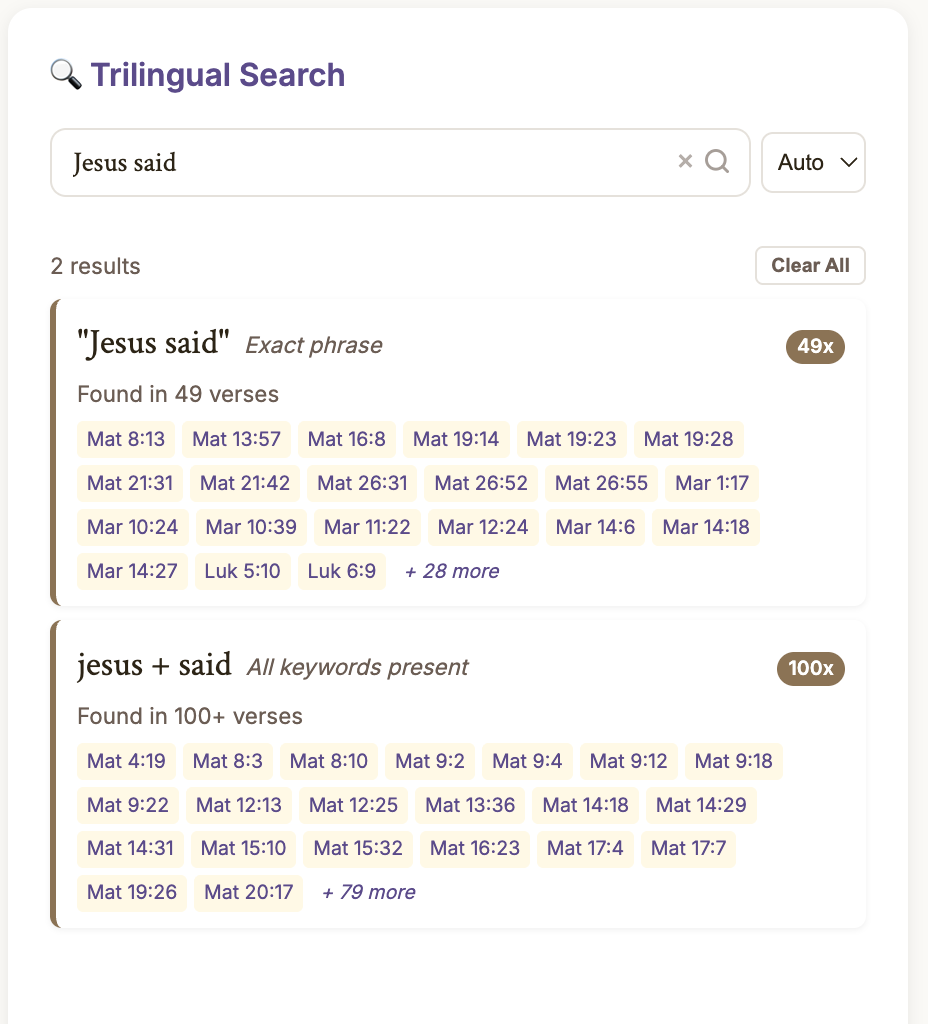
- Type your query and press Enter
- Results show as cards: Strong's matches show the word with all its verse occurrences, and text matches show verses containing the English word
- Click verse references to navigate directly to that verse, with your search term highlighted
- Expand "+ N more" to see all occurrences; collapse back to the preview
- Remove individual result cards with the × button, or clear all results
Tags — Three Independent Systems
Bible Word Study has three completely independent tagging systems. Each serves a different purpose, and they never interfere with one another. Tags are color-coded, so you can visually identify themes at a glance.
Bible Tags (Permanent)
Bible tags are permanent. They stay forever, independent of any study. Use them for long-term study themes like "Prophecy," "Grace," "Covenant," "Prayer," etc.
- Click the 🏷 button on any verse to open the Tag Picker. A "Bible" or "Study" badge tells you which layer you're working in — Bible when tagging from the reader, Study when tagging from the Study Console
- Create a new tag by typing a name and choosing a color
- Click an existing tag chip to assign/unassign it from the verse
- Bible tags show as solid colored dots before the verse number
- Clicking a Bible tag verse ref in the sidebar navigates to that verse in the main reader
Study Tags (Per-Study)
Study tags let you organize verses within the context of a specific study. The tag definitions (names and colors) persist forever, but the assignments (which verses have which tags) are saved and restored per study.
- Study tags appear in the Tag Picker when you're working on a study
- They show as dashed-outline dots before the verse number — visually distinct from Bible tags
- When you save a study, all study tag assignments are saved with it
- When you load a different study, the assignments switch automatically
- When you start a new study, study tag assignments are cleared
- Clicking a Study tag verse ref in the sidebar opens the Study Console
Word Tags (Lexicon)
Word tags are applied to Strong's numbers, not verses. This means tagging a word once marks it everywhere it appears in the entire Bible. Use these for linguistic themes like "Root: love," "Verb form: imperative," or "Key theological term."
- Word tags are available in the Tag Picker when viewing a word in the Lexicon Study Center or the sidebar Strong's view
- They are permanent forever — not tied to any study
- They show as "W" circle dots in a second row below verses that contain tagged words
- Tagging a word automatically makes it a "studied word" — it will appear in the Lexicon Study Center's My Words tab
- Clicking a Word tag entry in the sidebar opens the Lexicon Study Center with that word displayed
Tag Dots on Verses
Every verse in the Bible reader shows up to three layers of tag indicators:
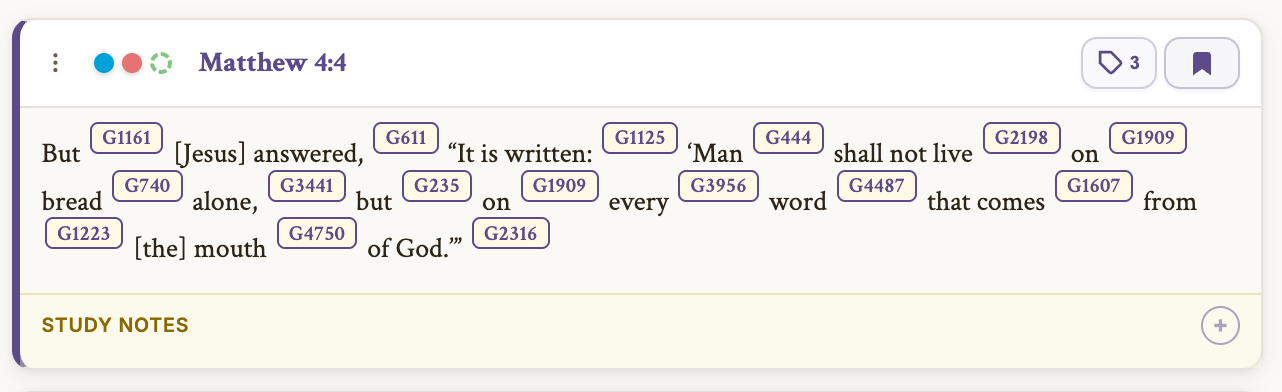
- Row 1 — Bible dots (solid) — Filled circles in each tag's color
- Row 1 — Study dots (dashed) — Open rings with dashed borders in each tag's color
- Row 2 — Word dots ("W") — Small circles with a "W" inside, shown below the verse when any Strong's number in that verse has a Word tag
Each layer can be independently shown or hidden in Settings.
Tags Sidebar Panel
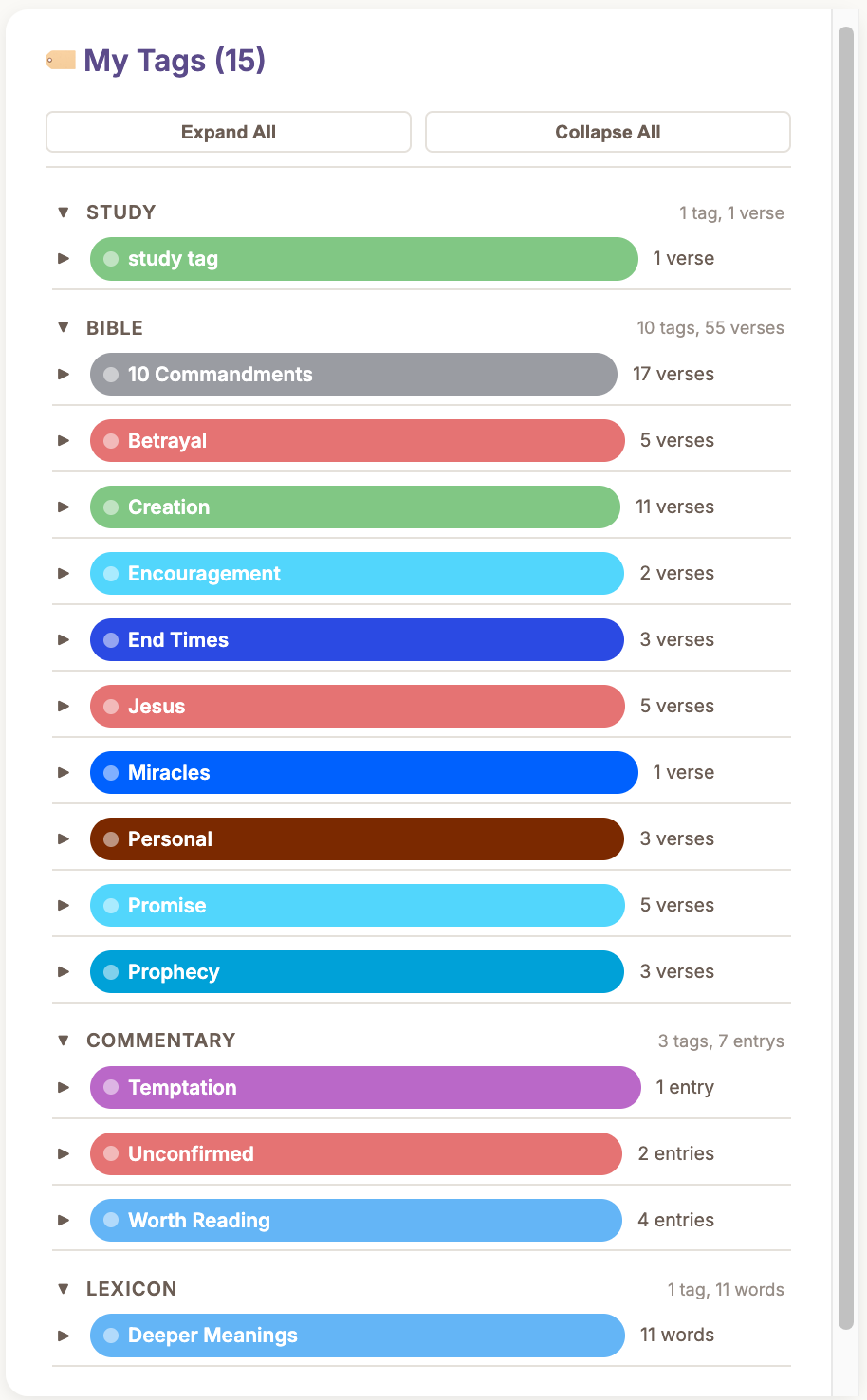
Click the Tags button on the nav rail to browse all your tags, organized in three collapsible sections:
- Study — Tags from the active study (verse references). This section is hidden when study mode is off, since no study is active.
- Bible — Permanent Bible tags (verse references)
- Lexicon — Word tags (Strong's number references with lemma and transliteration)
- Click any section header to collapse or expand it
- Click any tag group header to expand/collapse its list of assigned items
- Use Expand All / Collapse All buttons to toggle everything at once
- Click a verse reference to navigate to it (Bible) or open the Study Console (Study)
- Click a word reference to open the Lexicon Study Center with that word
- Use the × button on a tag group to delete the tag entirely (with confirmation)
- Use the × button on an individual item to unassign that tag from that verse/word (with confirmation)
Study Console
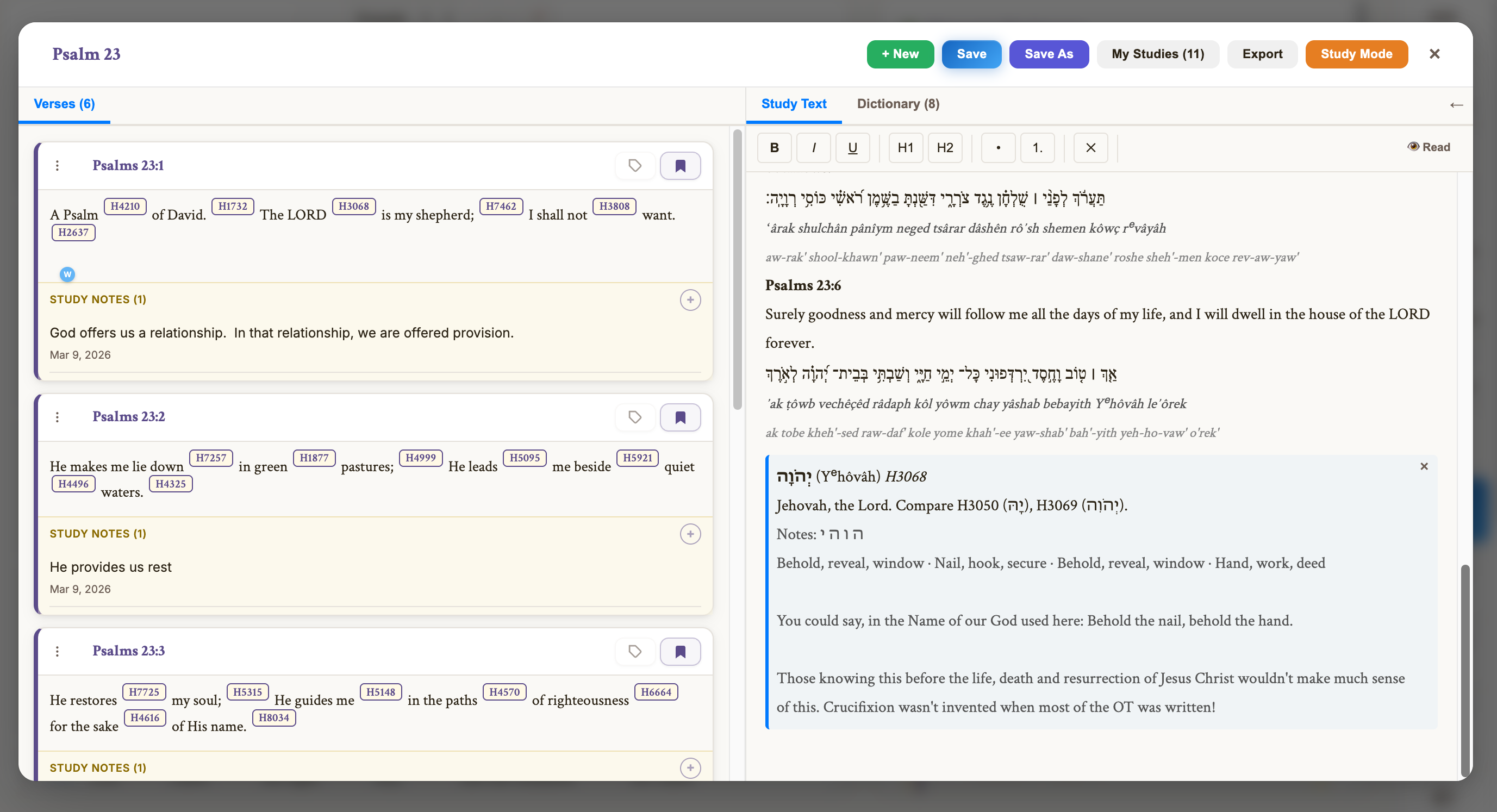
The Study Console is a full-screen workspace for preparing Bible studies. It provides a two-panel layout where you can write study text alongside your collected Bible verses, with full Strong's concordance access.
Creating & Managing Studies
Starting a New Study
There are several natural ways to begin a study:
- Bookmark a verse with study mode off — You'll be prompted to name a new study. Once you give it a name, study mode turns on, the study is created, and the bookmark is added. This works from any of the three bookmark entry points (verse card, verse trail, Bookmark All). See Study Mode.
- Click Save on the nav rail — If no study is active, you'll be prompted to name it. Everything you've been collecting (bookmarks, dictionary words, search results) is captured into the new study.
- Open the Study Console and create one — Click the Study button on the nav rail to open the Study Console, then start a new study from there.
Saving Your Work
Studies save automatically as you work. Any change — adding a verse, writing a note, editing study text — queues a save that goes to the cloud within moments. The Save button on the nav rail provides visual feedback:
- Red = unsaved changes are pending
- Blue = all changes saved
- Green flash = save just completed
You can also click the Save button at any time to force an immediate save. If you switch tabs or close the browser, any pending changes are flushed automatically — nothing is lost.
Loading a Saved Study
Click the Study button on the nav rail to open the Study Console, which shows all your saved studies sorted by most recent. Click a study name to load it. All of its data — verses, notes, dictionary words, text, tags, search results, and verse trail — is restored exactly as you left it.
Your most recent study is automatically restored when you sign in, so you pick up right where you left off.
Deleting a Study
In the Study Console, click the delete button next to a study name. The study and all its data are permanently removed. If that study was the one you had active, you're returned to a clean slate.
- Study text (the rich-text editor content)
- Verse cards (all verses added to the study)
- Commentary notes (from any of the 11 commentary sources)
- Study notes (per-verse notes inside the Study Console)
- Bookmarks
- Dictionary history
- Verse trail
- Search results
- Study tag assignments (which verses have which study tags)
The Study Console Header
At the top of the Study Console you'll find the study name and a set of controls:
- Study name — Shows the name of the currently loaded study
- Study Mode button (orange) — Click to turn study mode off. If you have unsaved changes, you'll be prompted to save first. See Study Mode.
Study Text & Notes
The study text editor is a rich-text (contenteditable) area where you can format your notes, paste content, and inject word study summaries directly from the Lexicon tools.
Study notes are per-verse notes written inside the Study Console — they are part of the study and are shared when you post to the Community Portal. This is different from Bible notes ("My Notes"), which are permanent, private, and never shared. (See Notes for the full distinction.)
Lexicon Study Center
The Lexicon Study Center is a full-screen modal for deep lexicographic research. It contains over 13,000 Hebrew and Greek entries from Strong's Concordance, the Brown-Driver-Briggs Hebrew Lexicon, and the Abbott-Smith Greek Lexicon.
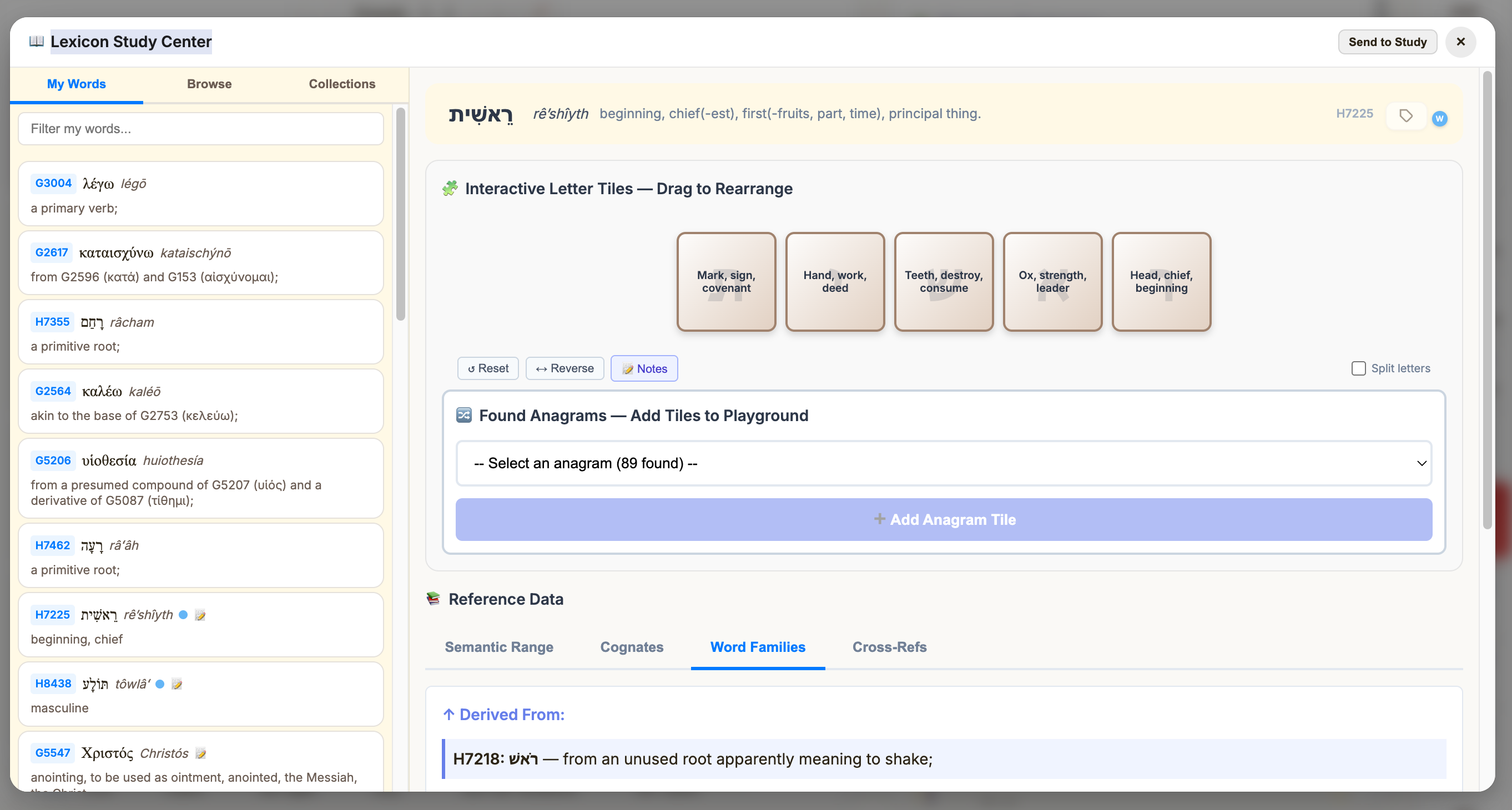
Open it from the Lexicons button on the nav rail, or press Ctrl+Shift+L.
The left panel has three tabs:
My Words
An aggregated list of every word you've studied or interacted with, sorted by most recent. A word appears here when you do any of the following:
- Click a Strong's number in the Bible text
- Tag a word with a Word Tag
- Write study notes on a word
- Send a word to your study
Each card shows:
- Strong's number, lemma, transliteration, and short definition
- Tag dots (if the word has Word tags)
- A note icon if you've written notes on this word
- A filter/search bar to quickly find a specific word
Browse
Browse the complete Hebrew or Greek lexicon with paginated results:
- Toggle between Hebrew and Greek with language buttons showing entry counts
- Search by Strong's number, lemma, transliteration, or definition
- "Load More" pagination for smooth browsing of the full lexicon
Collections
Collections show your Word Tag groups. Every tag that has words assigned appears as a collection card, sorted by item count.
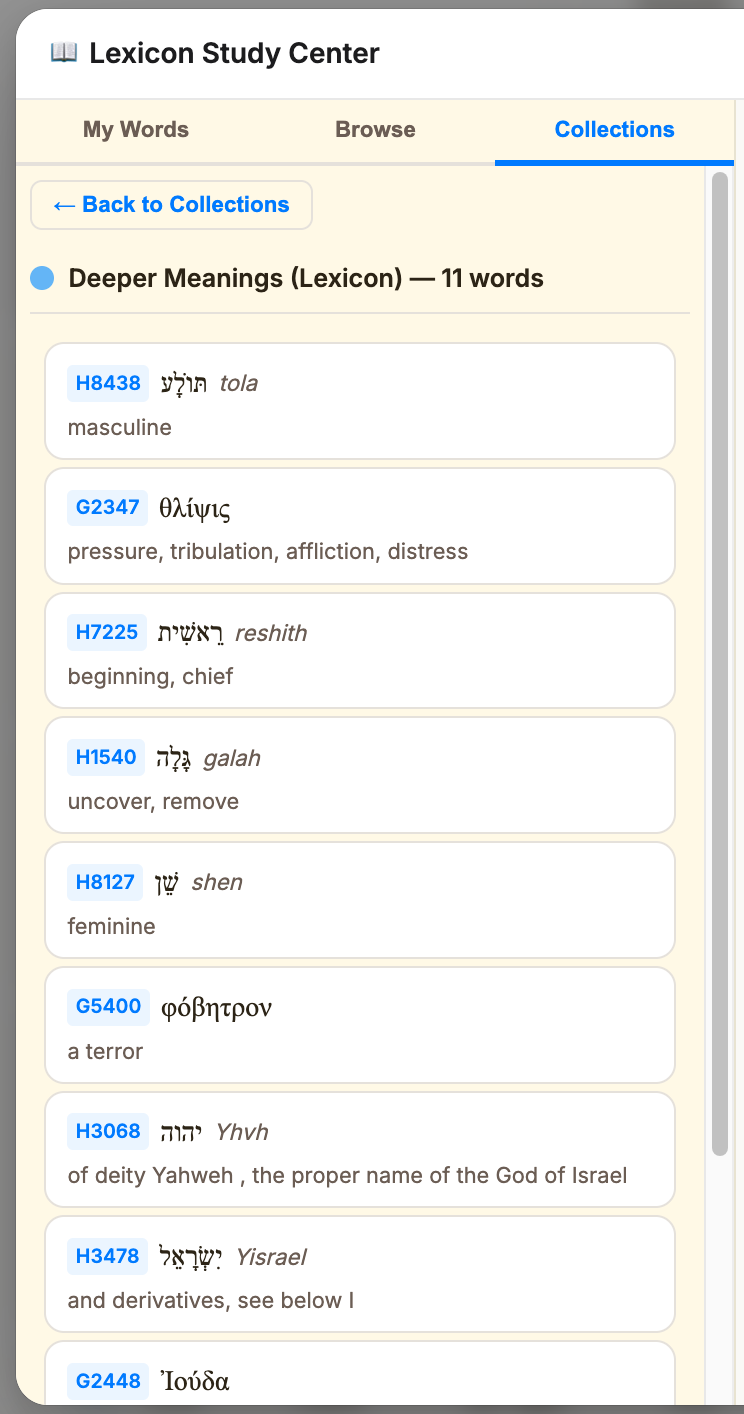
- Each card shows the tag color, name, and word count
- Click a card to drill into its words
- Click a word in the collection to load its full study in the right panel
- Use the back button to return to the collections list
The right panel shows the Word Study Panel for whichever word you've selected. This includes:
- Full word display (lemma, transliteration, meaning, Strong's number)
- Word tag button and tag dots
- Interactive letter tiles with drag-to-rearrange and anagram discovery
- Reference tabs: Semantic Range, Cognates, Word Families, Cross-References
- Auto-saving study notes
- Send to Study button — injects a formatted word study block into your active study
Deep Word Studies
Word Studies let you save extended research on individual Strong's words. Each study captures the word, its context, and your personal notes.
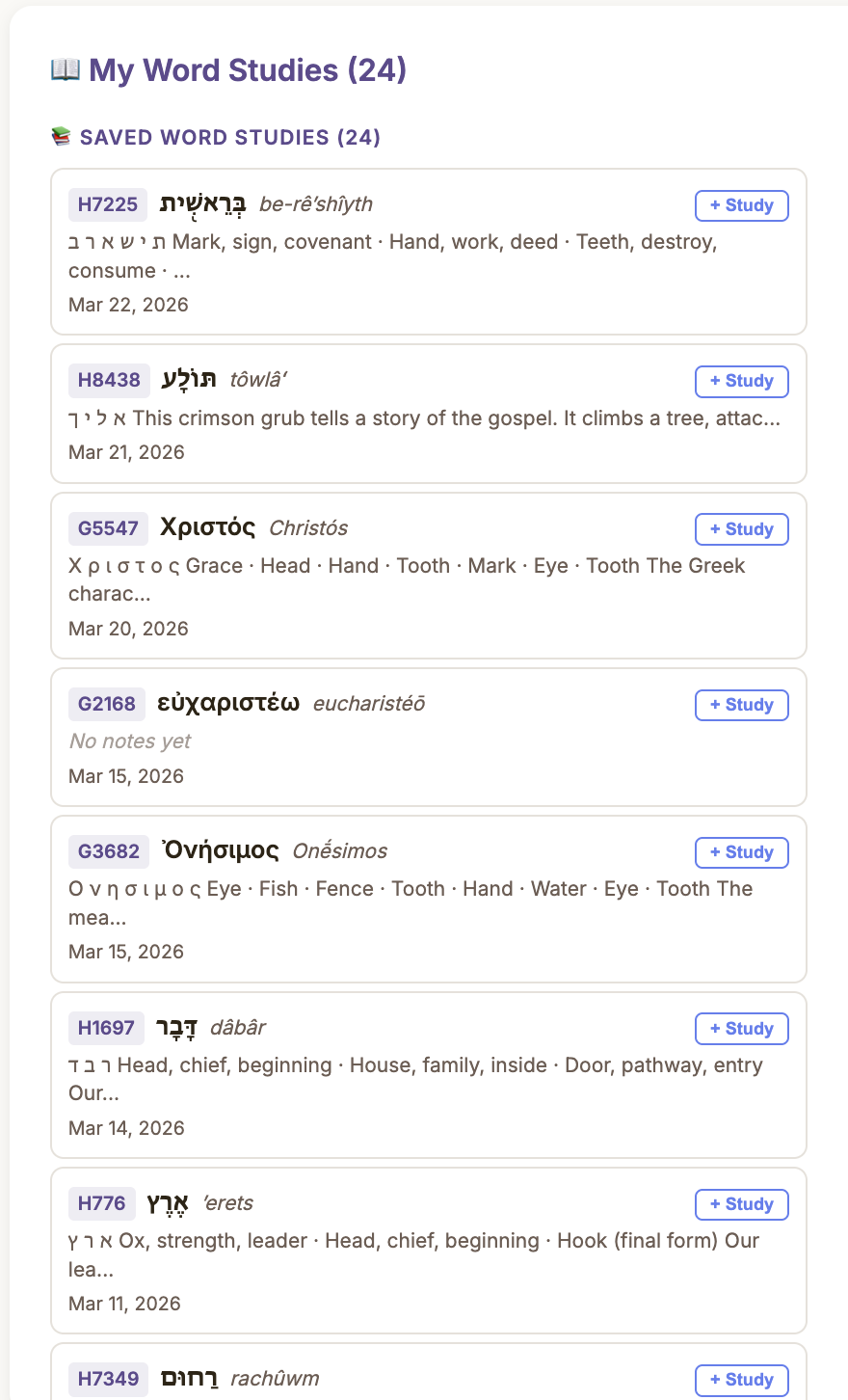
- Click the Word Study button in the Strong's sidebar view to create or open a study for that word
- Write and auto-save personal notes about the word
- Studies are permanent — they persist forever across all your studies and devices
- From the Word Studies sidebar, click to inject a formatted word study block directly into your study text
- Click any study in the list to open the Lexicon Study Center for deeper research
Original Language Practice
The Language Practice modal helps you practice reading the current chapter in its original Hebrew or Greek. It displays the original-language text alongside transliteration and English translation to help you learn to read the languages of the Bible.
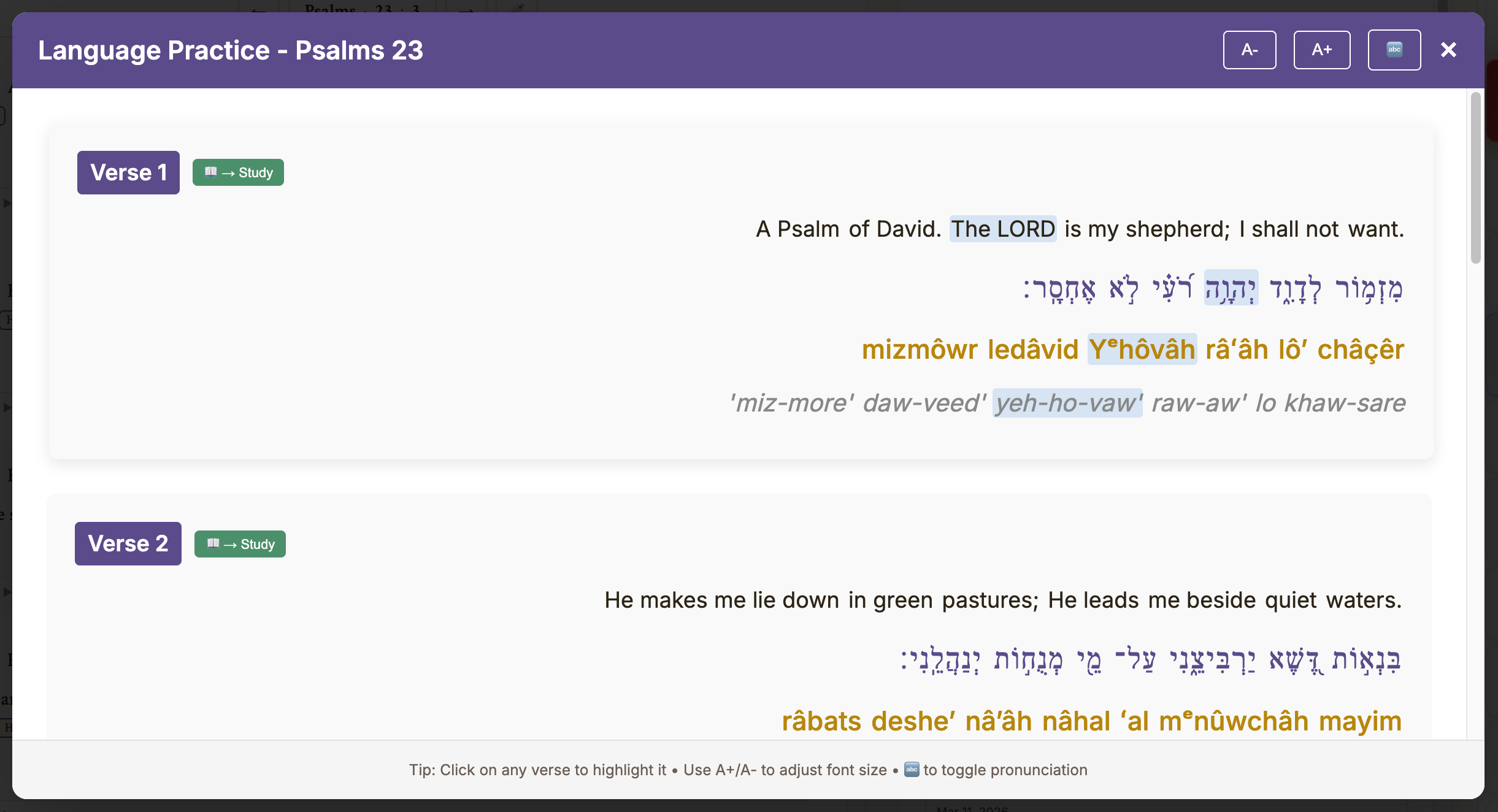
- Open from the Language Practice button on the nav rail
- Automatically loads the current chapter's original-language data
- Practice reading right-to-left Hebrew or left-to-right Greek
Bible Reference Popup
The Bible Reference Popup is a floating, draggable window that lets you read any verse without leaving your current view. It appears whenever you click a cross-reference link, a verse reference in the Tags panel, or a verse reference in the Lexicon Study Center collections.
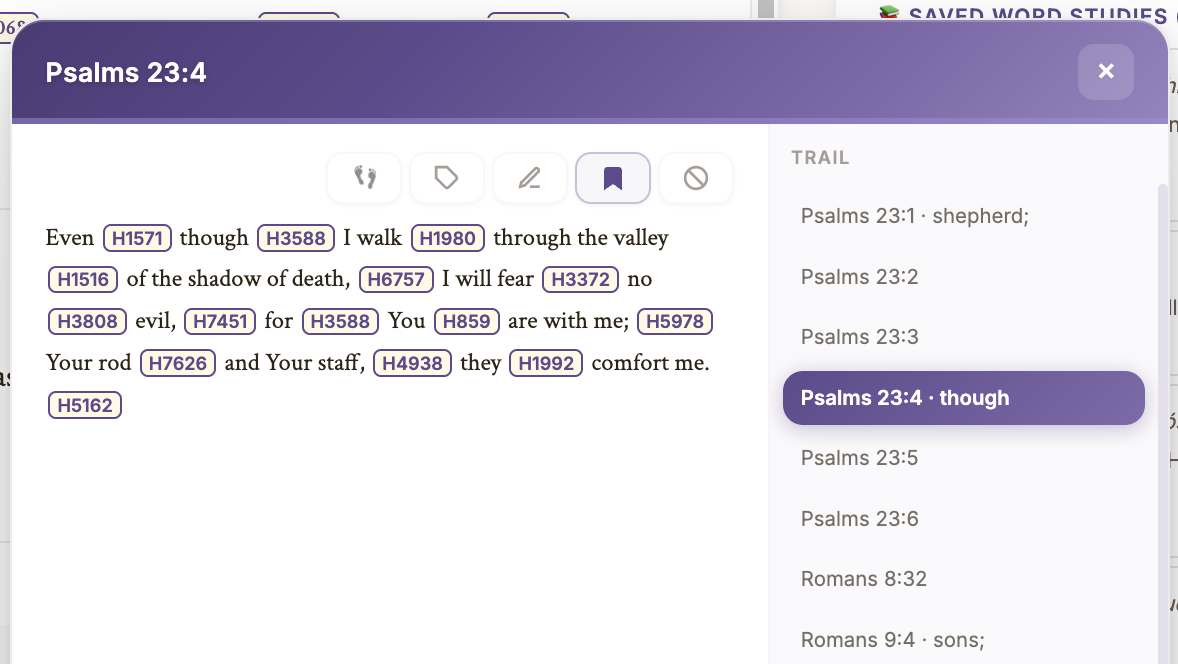
- Draggable — Grab the purple header bar to move the popup anywhere on screen
- Action buttons — Every verse in the popup has: "Go to verse" (navigate the main reader), Bookmark, Tag, and Notes buttons
- Navigation trail — When you follow cross-references within the popup, a trail builds on the right side showing every verse you've visited. Click any trail entry to jump back to it.
- Strong's numbers — Strong's markup is fully active inside the popup. Click any Strong's number to see its definition in the sidebar.
- On mobile, the popup appears as a bottom sheet that slides up from the bottom of the screen
- Press Escape to close the popup
Verse Trail
The Verse Trail tracks every verse you visit as you follow cross-references, click bookmarks, click Strong's words, or explore related passages. It builds a breadcrumb trail of your research journey — a record of where the Spirit has led you through the Word.
- A verse is added to the trail when you click a cross-reference, click a Strong's number in a verse, bookmark a verse, or navigate via the popup
- Click the Verse Trail button on the nav rail to reopen your trail at the last verse you visited
- Click any entry to jump back to that verse
- Remove individual entries with the × button, or use the Clear All button (the circle-slash icon in the verse action row) to wipe the entire trail. A confirmation dialog protects against accidental clears.
- Two persistence paths: When study mode is on, the verse trail is saved with your study. When study mode is off, the trail is saved to your account settings. Each path waits independently — switching between modes never loses your trail. (See Study Mode for details.)
Community Portal
The Community Portal lets you share your Bible studies with friends and groups. Access it from the Community button on the nav rail.
- Share Studies — Post a study to your personal feed or to a group. The shared study includes all verses, study text, and study notes.
- Reactions — React to posts with meaningful responses. Clicking a different reaction switches to it instantly.
- Comments — Comment on shared studies and engage in discussion.
- Adopt Studies — See a study someone shared that you want to explore further? Adopt it to add it to your own study list.
- Groups — Create or join study groups. Group posts are visible only to group members.
- Friends — Connect with other believers. Personal feed posts are visible to friends.
Settings
Access settings from the gear icon on the nav rail or press Ctrl+S. All settings are saved automatically to your cloud account and sync across devices.
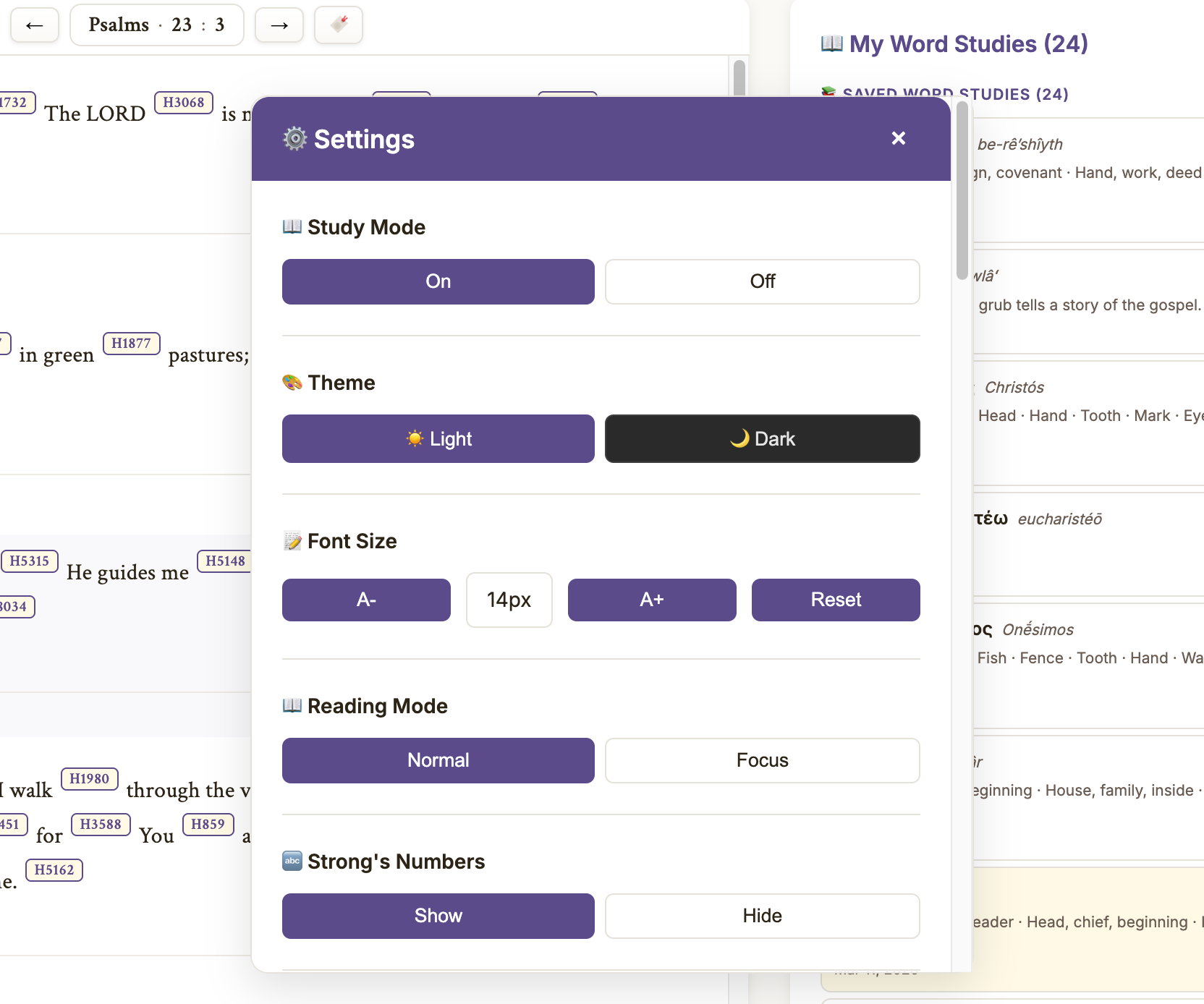
Study Mode
Toggle study features on or off. When off, you can simply read the Bible without study tracking cluttering your workspace. See Study Mode for full details on what changes.
Theme
Choose between Light and Dark mode. The dark theme is gentle on the eyes for late-night study.
Font Size
Adjust the base font size from 12px to 24px using A- / A+ buttons, or reset to the default (16px).
Reading Mode
- Normal — Full layout with sidebar, nav rail, and all verse interactions
- Focus — A distraction-reduced mode for concentrated reading
Strong's Numbers
Toggle Strong's number visibility on/off. When hidden, the verse text appears as clean English without any superscript codes.
Tag Picker Auto-Close
When enabled, the Tag Picker automatically closes after a set number of seconds (2, 3, 5, or 7). Turn it off if you prefer to close the picker manually.
Tag Visibility (Three Layers)
Each tag layer can be independently toggled:
- Bible Tags — Show/hide the solid permanent tag dots
- Study Tags — Show/hide the dashed study tag dots
- Word Tags — Show/hide the "W" word tag dots below verses
Data Sources & Credits
Bible Word Study is powered by: the Berean Standard Bible and King James Version with Strong's tagging, Brown-Driver-Briggs Hebrew Lexicon, Abbott-Smith Greek Lexicon, and OpenBible.info cross-references.
Study Mode
Sometimes you just want to read the Bible without all the study tools around you. Study Mode is a simple on/off toggle that lets you switch between full study tracking and a quieter reading experience.
What Changes When Study Mode Is Off
- Four nav buttons are hidden: Study, Save, Dictionary, and Bookmarks disappear from the navigation rail, giving you a cleaner workspace
- Strong's numbers still work — clicking a Strong's number still shows the definition in the sidebar. The difference is that it won't track the word in your study dictionary or mark anything as needing saving
- Tags still work — you can still tag verses with Bible-level (permanent) tags. The tag picker shows a "Bible" label to remind you these are permanent tags, not study-scoped ones. Study tags are hidden from the Tags sidebar
- Notes, search, highlights, cross-references, and the verse trail all continue to work normally
- Verse trail persists to your account settings when study mode is off, instead of to a study. It's waiting for you whenever you come back
How to Toggle Study Mode
There are two ways to turn study mode on or off:
- Settings panel — The Study Mode toggle is the very first setting. Click On or Off.
- Study Console header — An orange "Study Mode" button sits in the Study Console header bar. Click it to turn study mode off. (You won't use this to turn it back on — you'll be in the Study Console because study mode is already on.)
Unsaved Changes
If you have unsaved work in your current study and try to turn study mode off, you'll see a prompt asking if you'd like to save first. Click OK to save and then turn off study mode, or Cancel to stay in study mode with your work intact. No data is ever lost.
Bookmarking With Study Mode Off
Bookmarks are part of a study, so bookmarking a verse when study mode is off will prompt you to name and start a new study. Once you give it a name, study mode turns on, the study is created, and the bookmark is added — everything flows naturally from there. This works the same way from all three bookmark entry points: the bookmark button on a verse card, the bookmark button in the verse trail popup, and the Bookmark All button in the Bible reader header.
If you cancel the prompt, nothing happens — no study is created, no bookmark is added, and study mode stays off.
Switching Back and Forth
Your study and your reading trail are kept in separate buckets. When you turn study mode off, your study stays exactly where you left it. When you turn it back on, your study picks up right where it was. The verse trail you built while reading without a study is saved to your account and waits for the next time you turn study mode off again. Neither one interferes with the other.
Keyboard Shortcuts
Bible Word Study supports keyboard shortcuts for power users. All shortcuts use Ctrl on Windows/Linux or Cmd on Mac.
| Shortcut | Action |
|---|---|
| Ctrl+B | Toggle Bookmarks sidebar |
| Ctrl+N | Toggle Notes sidebar |
| Ctrl+L | Toggle My Dictionary sidebar |
| Ctrl+F | Toggle Search sidebar |
| Ctrl+S | Toggle Settings panel |
| Ctrl+Shift+S | Open Study Console |
| Ctrl+Shift+L | Toggle Lexicon Study Center |
| Left Arrow | Previous chapter |
| Right Arrow | Next chapter |
| Escape | Close popups and modals |